
Getting started with Audio Pitcher
Install Audio Pitcher, pick an app, change its pitch, choose where you hear it, and use effects and recording.
Audio Pitcher's interface is in Spanish for now, so this guide shows the Spanish labels with their meaning.
1. Install
- Download AudioPitcher-Setup.exe and open it. If Windows shows "Windows protected your PC", click More info and then Run anyway.
- Keep Install VB‑CABLE checked. It's the virtual audio device Audio Pitcher uses. Windows asks permission to install the driver: accept it.
- When the installer asks, restart your PC. It's only needed the first time, and without it you may hear nothing.
2. Pick the app
Under APP you'll see the apps that are playing sound right now. Pick the one you want to change, for example Spotify.
- If your app isn't listed, press play in it and open the list again: Windows only shows apps once they start playing.
- Más opciones… (more options), at the bottom of the list, shows every app with audio.
- Click the star next to an app to keep it at the top.
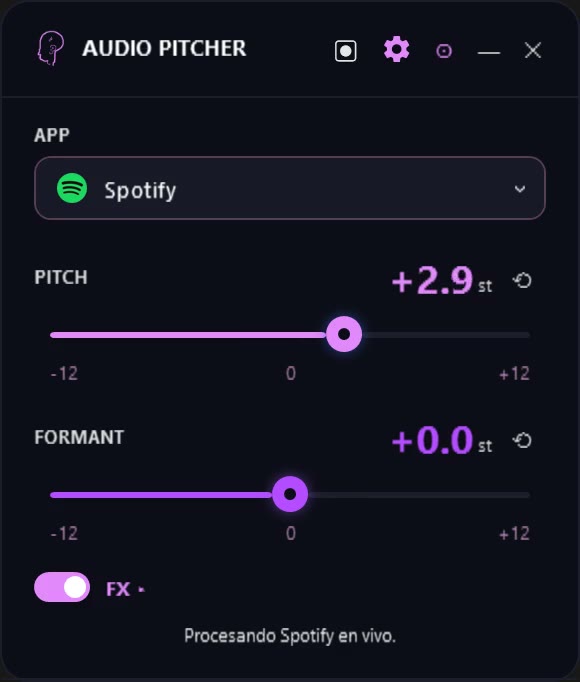
3. Change the pitch
- Drag PITCH to raise or lower the tone up to 12 semitones. The speed doesn't change.
- You can also click the number and type an exact value, like 2.5.
- The ↺ button next to it brings it back to 0.
- FORMANT changes the timbre of voices separately. Use it to keep voices natural when you move the pitch a lot.
4. Choose where you hear it
Open settings (gear icon) and look at SALIDA DE AUDIO (audio output). Pick your headphones or speakers. Dispositivo predeterminado (default device) follows whatever Windows is using. Never pick an option that says CABLE there, or you'll hear nothing.
5. Process all your PC audio
To change the pitch of everything at once, pick Sistema (VB‑Cable) under APP and set CABLE Input as the output in Windows (speaker icon on the taskbar). When you close Audio Pitcher, it switches Windows back to your headphones or speakers.
6. Effects
Turn on FX and open the panel with the small arrow to add reverb, delay or chorus. Each effect has a WET knob that controls how much of it you hear.
7. Record
- Click the record button at the top. It starts recording what plays on your PC.
- Stop it with ⏹. Drag the red edges of the waveform to trim the start and end.
- Press ▶ to listen to exactly what will be saved. NORM evens out the volume.
- Guardar WAV exports the file.
8. Window options
- The pin icon keeps Audio Pitcher above other windows.
- — minimizes it. In settings you can choose whether it goes to the taskbar or the tray next to the clock.
- In settings you can also change the theme, the colors and the text contrast.